Inside the toolkit
See it in practice
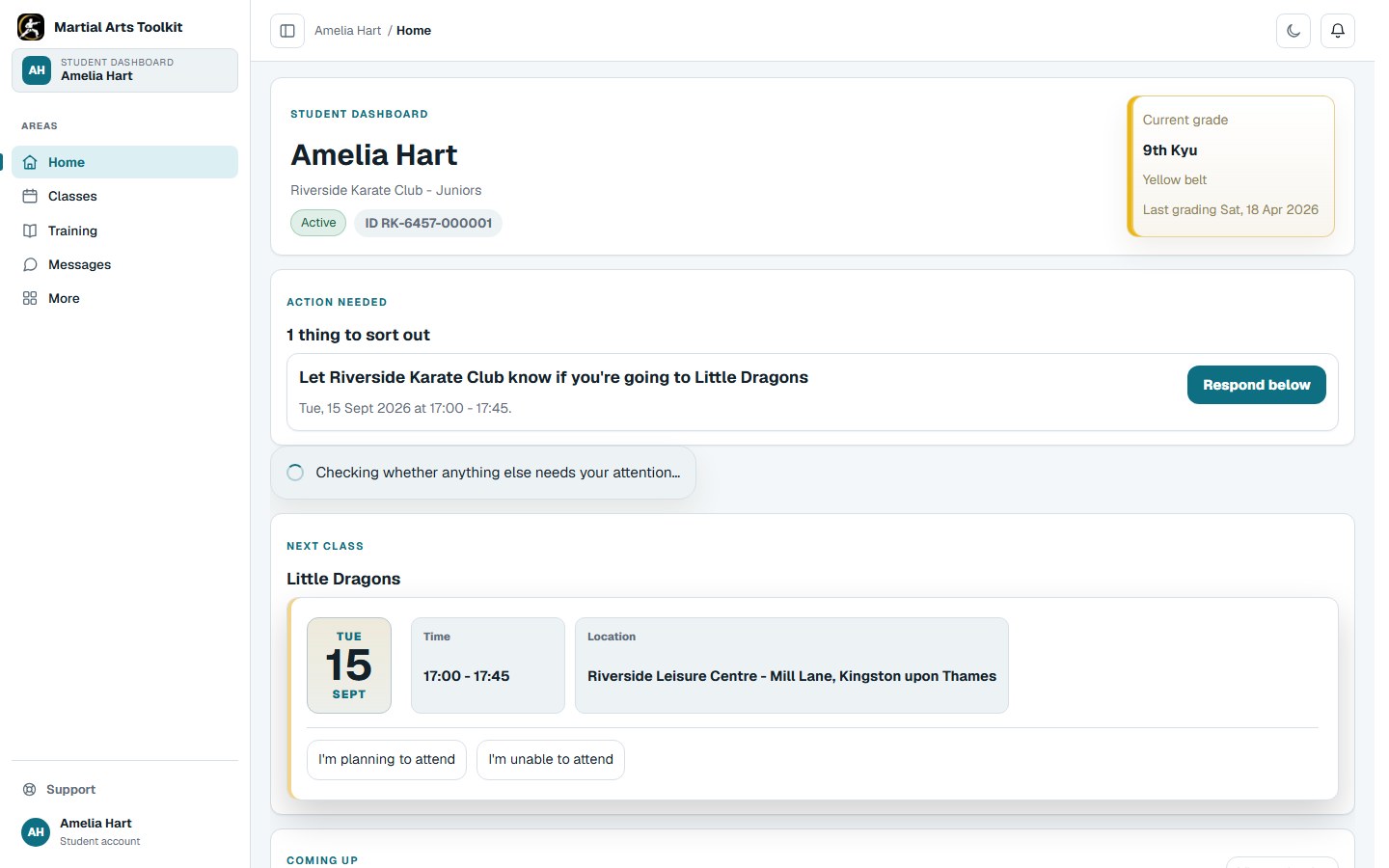
The student experience, captured with a synthetic linked account rather than an instructor account.
A practical approach
Make it part of the way your club works
Share the club's own link
Open Club → Students → Portal, activate the portal and copy the club's sign-in address. Portals start switched off. Once activated, students and families can use that page to create an account or sign into an existing one.
Approve the correct relationship
An unlinked account requests access using the student's name and their relationship. Staff review the request and match it to the existing student record. A shared surname is not enough to establish access.
Keep the student view useful
Maintain the timetable, grading records and messages that families rely on. A linked family account can choose between the students it can access, and a club portal shows the linked students from that club.
Worked example
Turn recurring questions into a clear place to look
The portal works best when club staff keep the underlying records current and explain where families should start.
| A family's question | Where to start | When to speak to the instructor |
|---|---|---|
| When is the next class? | The student's upcoming classes | If an assignment or exception looks wrong. |
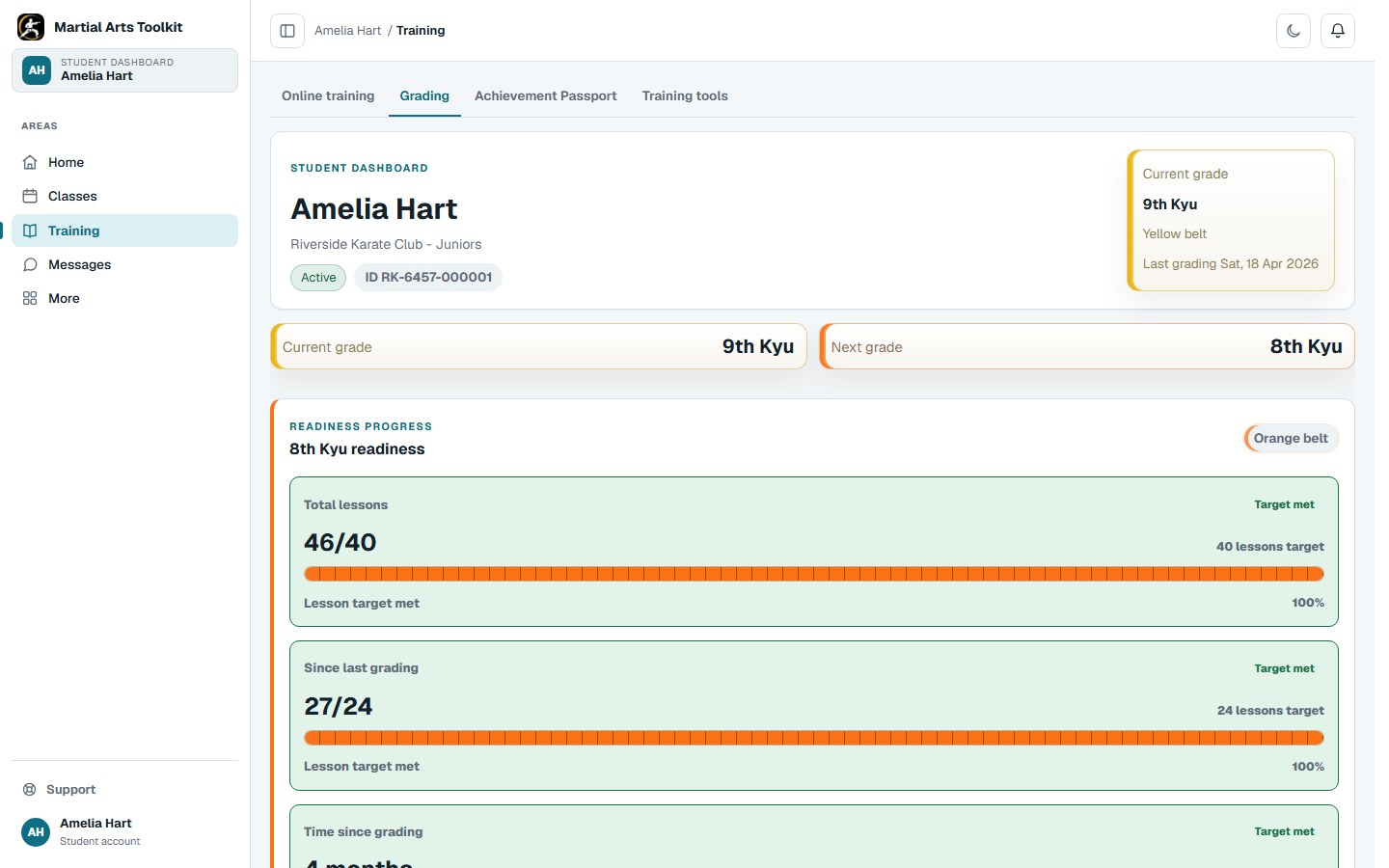
| How is their grading progress? | The student's grading and progress view | For the instructor's final readiness decision. |
| What should they practise? | An assigned training plan | To clarify a goal or coaching instruction. |
| Why can I not see my child? | The club's account-link request process | If the request is pending or linked incorrectly. |
The connected workflow
See the next grading requirements
The linked student can review their current grade and progress towards the next published requirements.
Keep the context
Self-service does not replace a useful conversation
The dashboard can answer routine questions, but an assessment or grading decision still benefits from an instructor explaining the context. Use the shared information as a starting point for that conversation.
Clubs can turn their shared portal page off from its settings. Existing accounts and student links remain intact, so switching off the entry page is not the same as removing someone's account access.
Before you start
Questions club owners ask
Does anyone with the club's link see the students?
No. The public page shows club information and sign-in options. Private student information requires the appropriate account link and access.
Can a parent use one account for siblings?
Yes. Staff can link the account to the appropriate student records so the parent can choose the student they need.
Does creating an account automatically create another student?
No. The portal's access request is matched to an existing club student record by staff.
Try it with your own club
Less time on administration.
More time to teach.
Create your club free today and explore the workflow. Compare plans as your club grows.